
Burmese TV Pro for PC, Window and Mac – Learn to Use It
Looking for Burmese TV Pro for PC? It is mainly an Android app, and there is no Windows or Mac version that we could verify. To use it on a PC, laptop, or desktop, you need to install an Android emulator on your PC. An emulator is a program that runs an Android phone inside a window on your computer without needing a mobile phone.
This guide explains your options for Windows 10, Windows 11, and Mac. It also shows what we could confirm, what we could not, and how to avoid installing the wrong app.
Last updated: October 2026
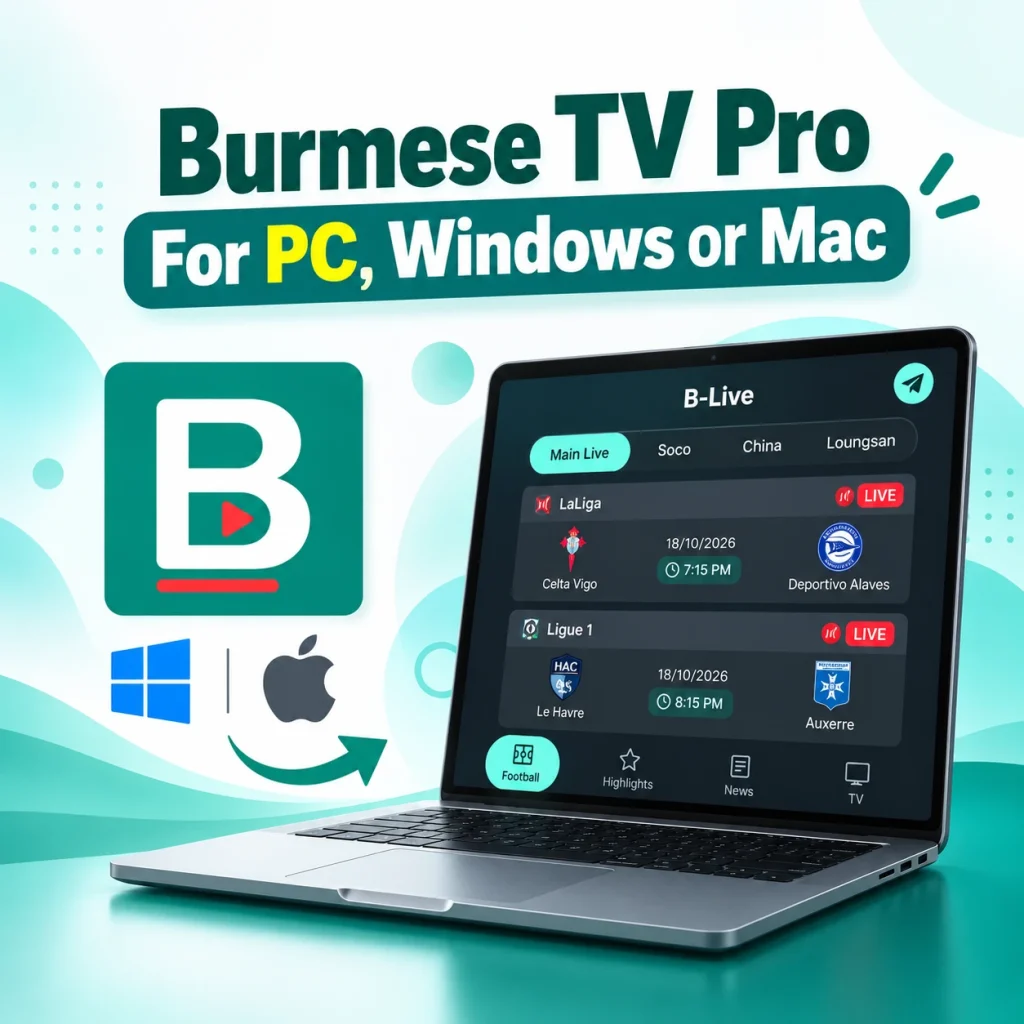
Quick Answer
| Question | Answer |
|---|---|
| Is there an official Windows or Mac app? | None that we could verify |
| Can it run on a PC? | Yes, in most cases, with an Android emulator |
| Does it work on Windows 10 and 11? | An emulator such as BlueStacks runs on both |
| Does it work on Mac? | Possible on Apple Silicon Macs (M1 to M4). Less clear for Intel Macs |
| Where do I get the APK? | BurmeseTVPro.com |
| Did we test it in an emulator? | No. Read the limits below |
Can You Run Burmese TV Pro for PC?
The app file is an Android APK, and Windows and macOS cannot open APK files on their own. To use it on our PC or Laptop, we will learn to install and download an emulator. Before that, here are the facts we checked from the APK file itself:
| Detail | Verified value |
|---|---|
| App name | Burmese TV Pro |
| APK file | BTV-BStream.apk |
| Package name | com.yoyar.app |
| Version | 1.1.2 (version code 16) |
| APK size | About 57.8 MiB (60.6 MB) |
| Minimum Android version | Android 7.0 (API 24) |
| Built with | Flutter |
| Included chip support | arm64-v8a, armeabi-v7a, x86_64 |
The APK includes support for x86_64, the chip type used by most Windows PCs. It also includes arm64-v8a, the chip type used by Apple Silicon Macs. This is a good sign for emulator use. We have already downloaded and tested the app inside an emulator, so you don’t need to worry about its safety or features.
Windows 10 and Windows 11
What about the built-in Android feature in Windows 11?
Microsoft introduced a feature once called Windows Subsystem for Android which used to help users to run android applications on their PC. Later on March 5, 2025, they ended support for it and better not to use that. An emulator is the practical choice now.
Emulator requirements for Windows
You can find a lot of but we suggest BlueStacks 5 because it is widely used and installs APK files easily. These are the minimum requirements listed by BlueStacks:
| Requirement | Minimum |
|---|---|
| Operating system | Windows 10 (version 1903 or newer) or Windows 11 |
| Processor | Intel or AMD |
| RAM | 4 GB |
| Account | Administrator on your PC |
| Free disk space | About 10 GB |
Our recommendation, not a BlueStacks rule: use 8 GB of RAM or more for smoother video. Also turn on virtualization in your PC settings if the emulator runs slowly.
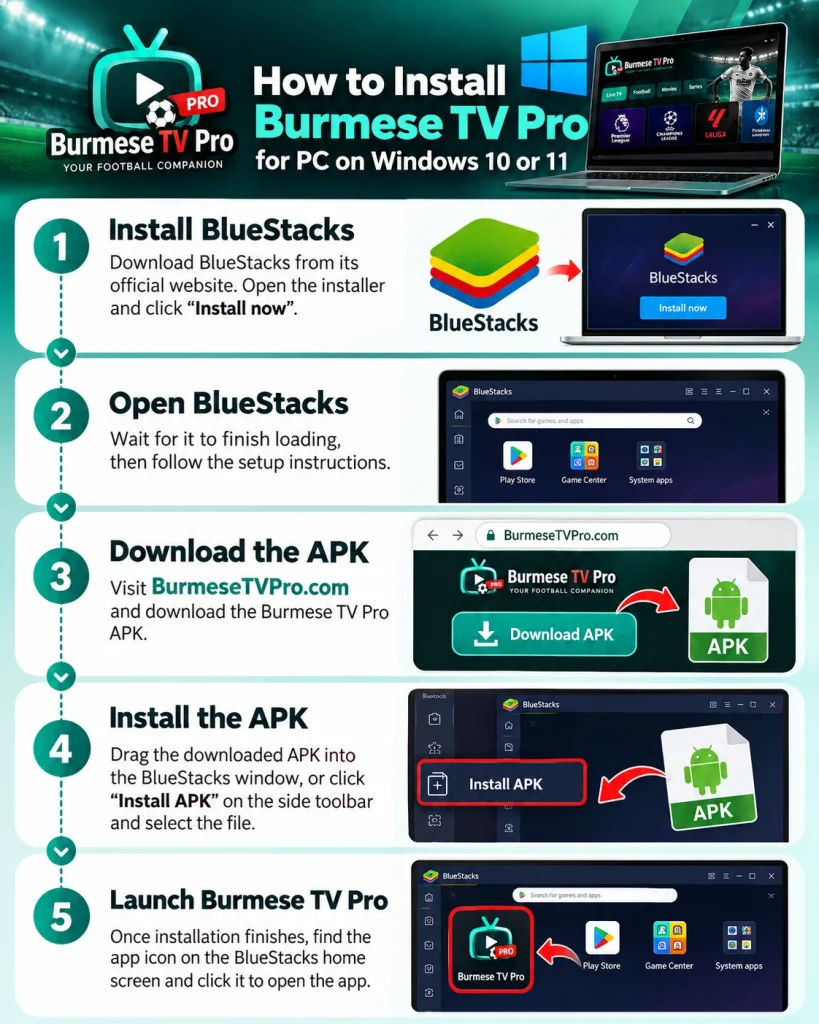
How to Install Burmese TV Pro for PC on Windows 10 or 11
- Install the emulator. Download BlueStacks only from the official BlueStacks website. Open the installer and click Install now.
- Open BlueStacks. Wait for the first launch to finish. Follow its setup prompts.
- Get the APK file. Visit BurmeseTVPro.com, find the APK download section, and download the file.
- Install the APK. Drag the APK file from your folder and drop it on the BlueStacks window. You can also click the Install APK button on the BlueStacks side toolbar and pick the file.
- Open the app. When the install finishes, the app icon appears on the BlueStacks home screen. Click it to start.
The steps are the same on Windows 10 and Windows 11. A 64-bit version of Windows 11 is fine.
Burmese TV Pro for Mac
What you need
BlueStacks Air is a separate program from BlueStacks built specially for Mac users who want to run their android applications on Mac. These are its listed requirements:
| Requirement | Minimum |
|---|---|
| Operating system | macOS 11 (Big Sur) or newer |
| Chip | Apple Silicon (M1, M2, M3, or M4) |
| RAM | 8 GB (16 GB recommended) |
| Free disk space | 12 GB |
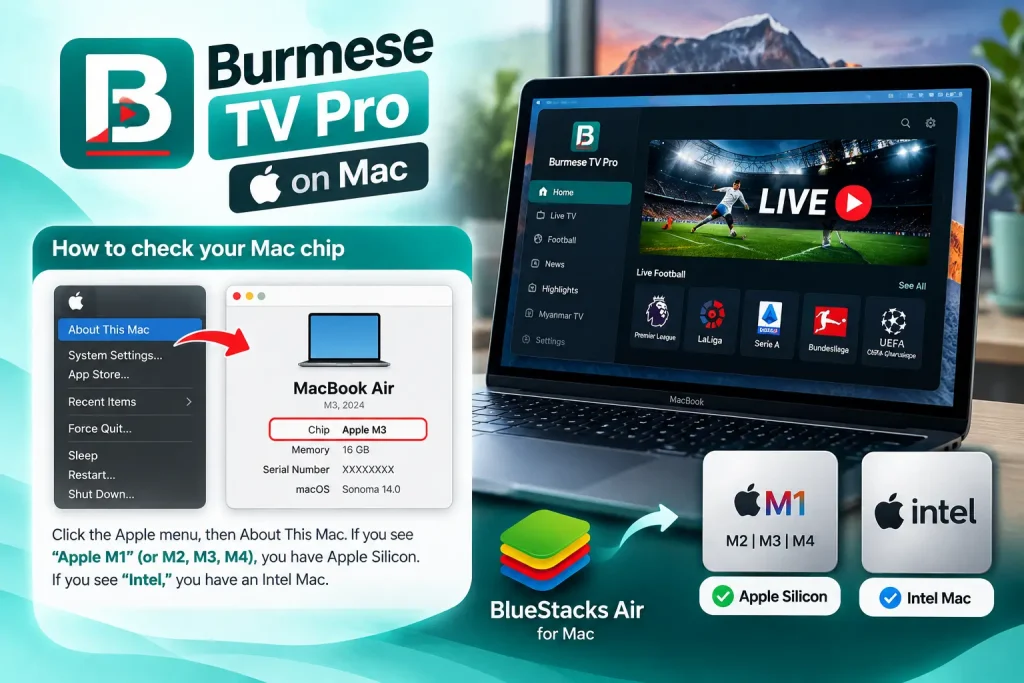
How to check your Mac chip
Click the Apple menu, then About This Mac. If you see “Apple M1” (or M2, M3, M4), you have Apple Silicon. If you see “Intel,” you have an Intel Mac.
Steps for Apple Silicon Macs
- Download BlueStacks Air from the official BlueStacks website.
- Open the downloaded file and move BlueStacks into your Applications folder.
- Open BlueStacks Air once it is installed.
- Open the BurmeseTVPro.com in bluestacks.
- Download the APK from that website.
- Try to install the APK by looking for an install-APK option or by dragging the file into the BlueStacks Air window.
Important limit: BlueStacks help pages for Mac mostly explain installing from its own store. We could not confirm one official step-by-step method for installing outside APK files on every Mac. Some reports say it works, but we have not verified it with this APK. If your version has no way to install an APK, this method will not work for you.
Intel Macs
BlueStacks Air is made for Apple Silicon. It is not the target for Intel Macs. If you have an Intel Mac, we do not have a verified, simple method to recommend.
Why You Should Not Search for the App Inside the Emulator
Many emulators have a search box that finds apps by name. If you type “Burmese TV Pro” there, you may find apps with the same or a similar name. Those can be different apps with different package names, developers, and features.
Always install the APK you downloaded from BurmeseTVPro.com. After installing, confirm the app identity by checking that the package name is com.yoyar.app and the version is 1.1.2.
What You Can Expect on Burmese TV Pro PC
The App’s main focus is around football. It has match lists in the Football tab, a Highlights tab with finished games, a News tab with Burmese headlines, and a small TV tab. A PC gives you a bigger screen, and the emulator needs an internet connection, since the app streams content. Some features may behave differently in an emulator. Phone alerts for live matches, highlights, and news are one example. Because we have not tested the app in an emulator, we cannot say which features will work the same.
Common Problems and Fixes
If you face any problem or find Burmese TV Pro for PC does not work as expected, start with this table. It may help you to fix common issues.
| Problem | What to try |
|---|---|
| Emulator will not install | Check Windows version, RAM, and free space. Run the installer as Administrator |
| Emulator is slow or lags | Close other programs. Turn on virtualization. Give the emulator more RAM in its settings |
| APK will not install | Download the file again. Make sure it finished fully and ends in .apk |
| Black screen or app closes | Restart the emulator. Reinstall the app. Try a different Android version in the emulator |
| Video buffers | Check your internet speed. Try Wi-Fi or a wired connection |
| Mac will not install BlueStacks Air | Check that your Mac has Apple Silicon and macOS 11 or newer |
| Wrong app appears | Confirm the package name is com.yoyar.app |
BlueStacks says version 5.20 and newer can run with Hyper-V on or off. Use the latest version of the emulator to avoid conflicts.
Is Burmese TV Pro for PC Safe?
It is 100% safe and virus free. You can download it from our website with these steps.
- Download the emulator only from its official website.
- Download the APK from BurmeseTVPro.com.
- Do not sign in with accounts you care about unless you trust the app.
- Expect sponsored ads between match cards. Tapping Install on an ad opens another app, so tap only if you want it.
- Keep Windows or macOS and your security software up to date.
Other Ways to Watch on a Bigger Screen
If an emulator does not work for you, you can run the app on your Android phone or tablet and use a screen mirroring or casting option. We have not tested this, so results can vary.
Frequently Asked Questions
Is there an official Burmese TV Pro for PC version?
We could not verify any official PC version. The app is an Android APK. You can try running it on a PC with an Android emulator.
How do I install Burmese TV Pro for PC on Windows 11?
Install BlueStacks from its official website, download the APK from BurmeseTVPro.com, then drag the APK into BlueStacks. Full steps are above.
Does it work on Windows 10?
BlueStacks supports Windows 10 version 1903 and newer, so the emulator method should apply. You can give it a try.
Does Windows 11 run Android apps without an emulator?
Microsoft ended support for Windows Subsystem for Android on March 5, 2025, so you should use an emulator instead.
Can I use it on a Mac?
It may work on Apple Silicon Macs with BlueStacks Air. The APK install step is not clearly documented for Mac, so we cannot promise it. Intel Macs are not the target for BlueStacks Air.
Can I use it on a laptop?
Yes, if your laptop meets the emulator requirements. The steps are the same as for a desktop PC.
Can I watch football live on my PC?
The app includes match lists, highlights, and news. On a PC, you would watch through an emulator. We have not tested live streams there, so playback is not guaranteed.
What is the package name of the app?
The package name of the APK covered here is com.yoyar.app. The version is 1.1.2.
Which emulator should I use?
We describe BlueStacks because its install steps are well documented. Other emulators exist, but we have not verified the app on them.
Where can I download Burmese TV Pro for PC?
Visit BurmeseTVPro.com and use the APK download section. The same APK file is used inside the emulator.
Is it free?
It is free to download and use. The app shows sponsored ads.